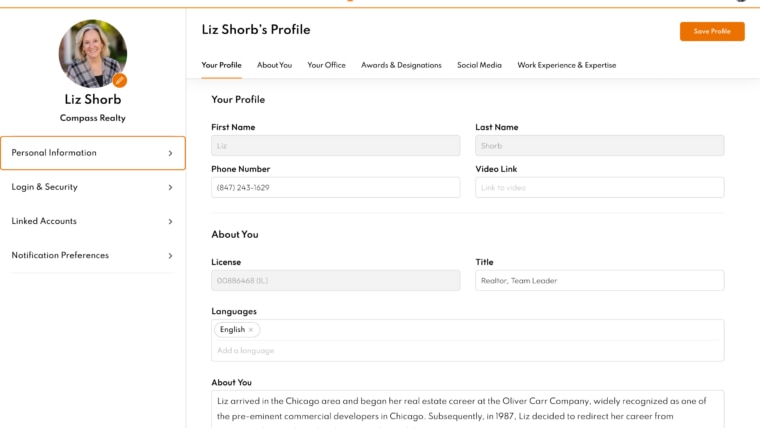
To edit your account information or change your password on Homes.com, you’ll want to go to your account settings.
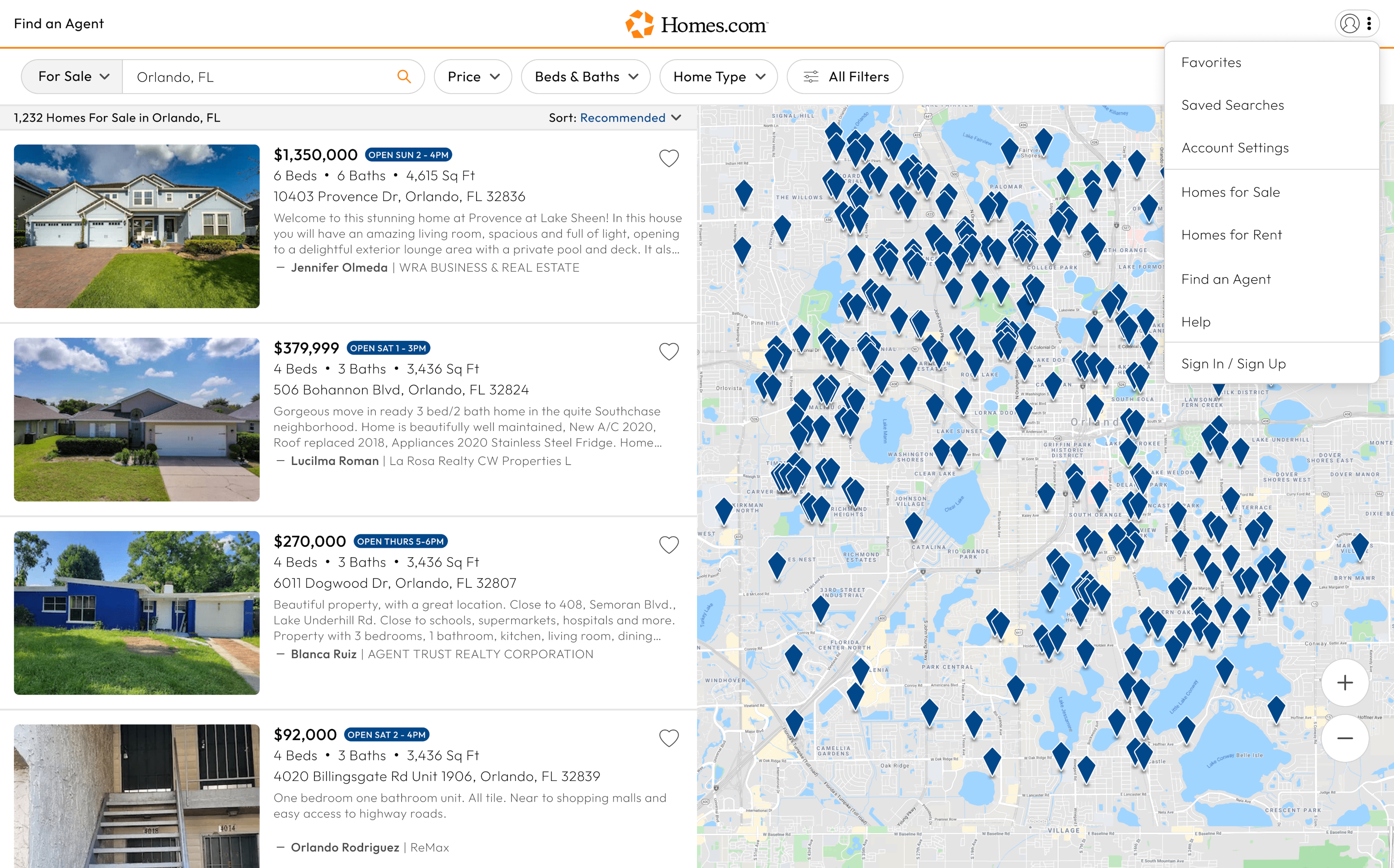
To get to your account settings, click or tap on the profile icon in the top right corner and a menu will drop down.
In the menu you will see “Account Settings.” Click or tap on that and you’ll be taken to your settings.
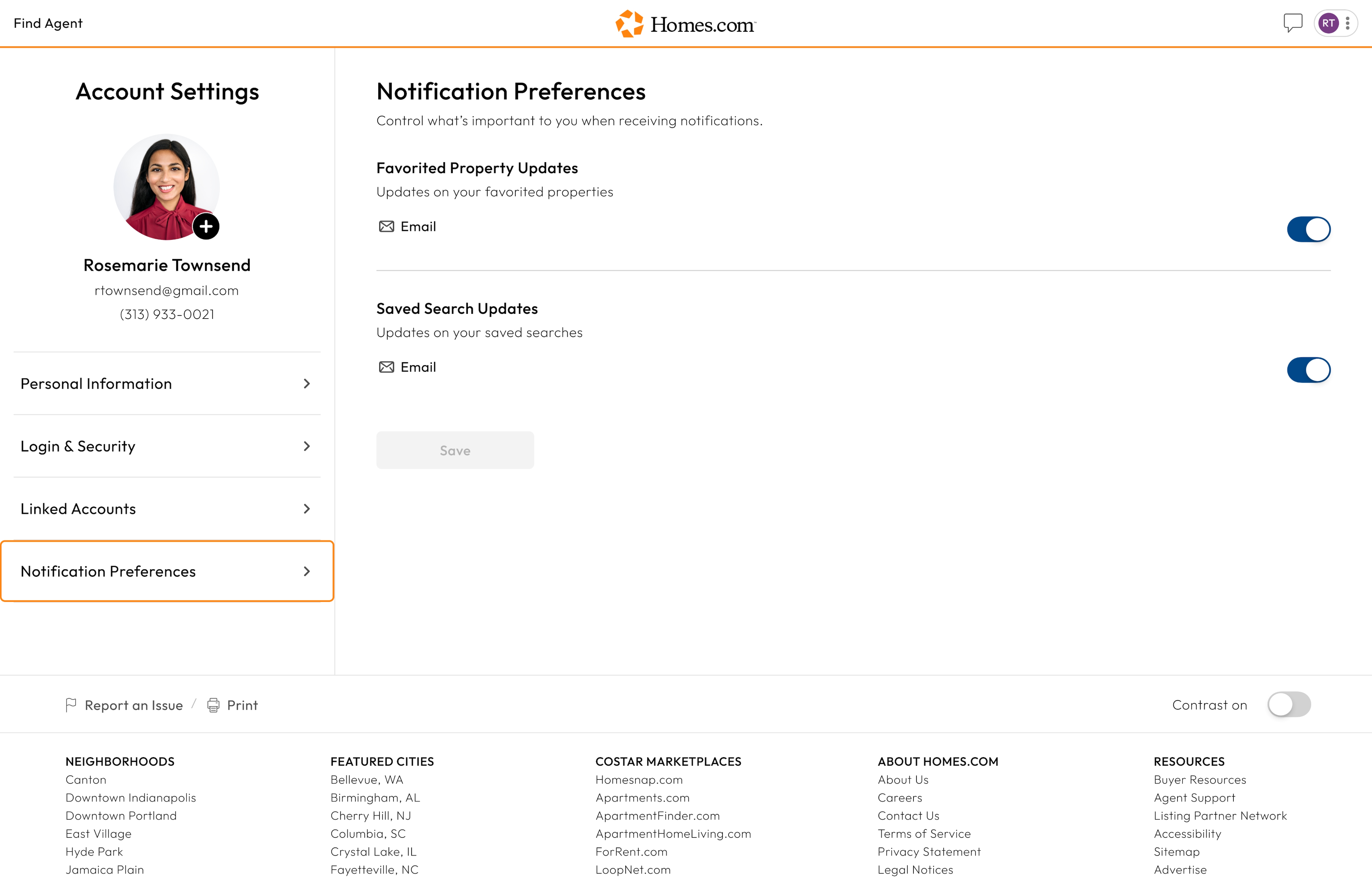
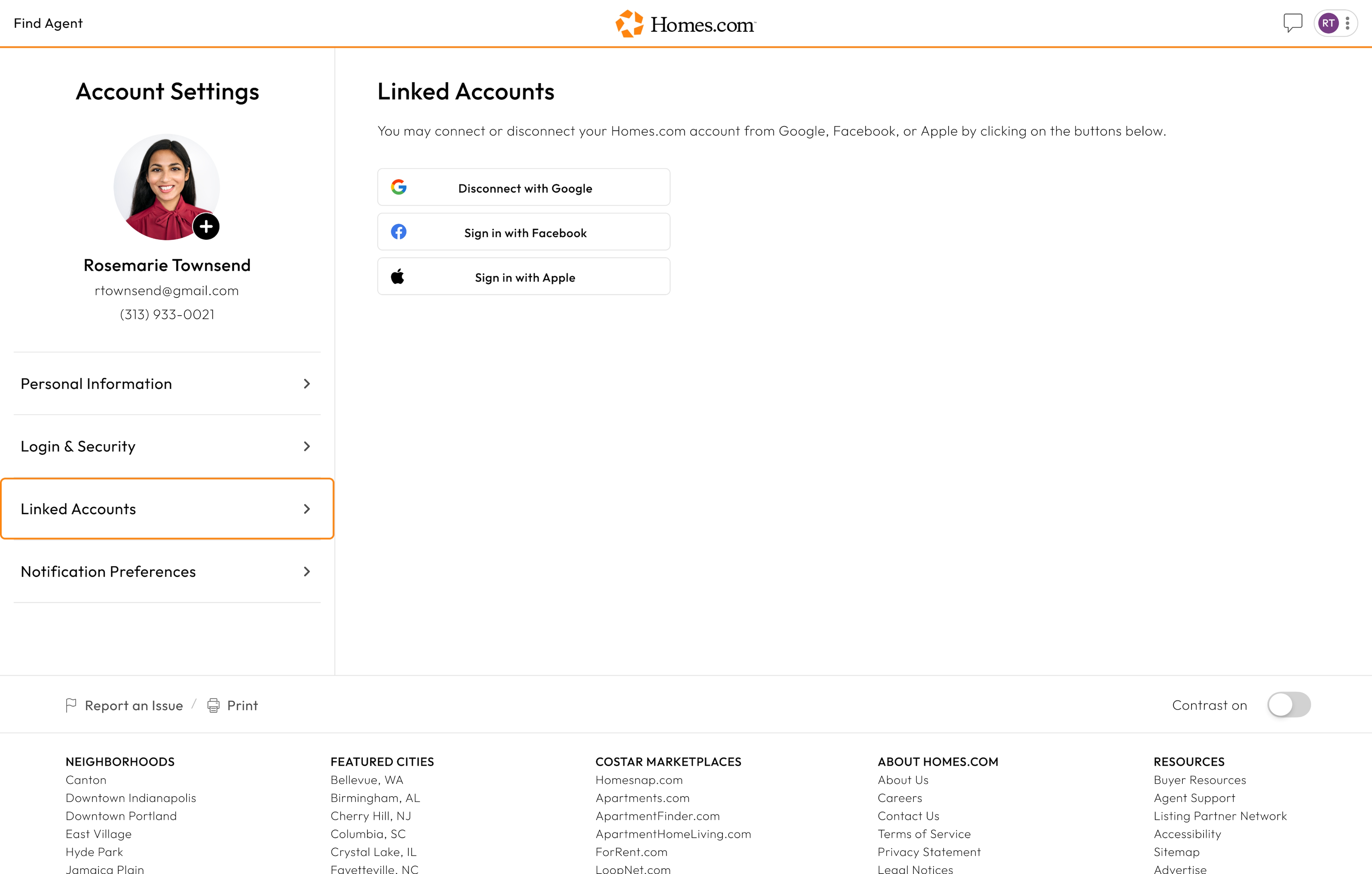
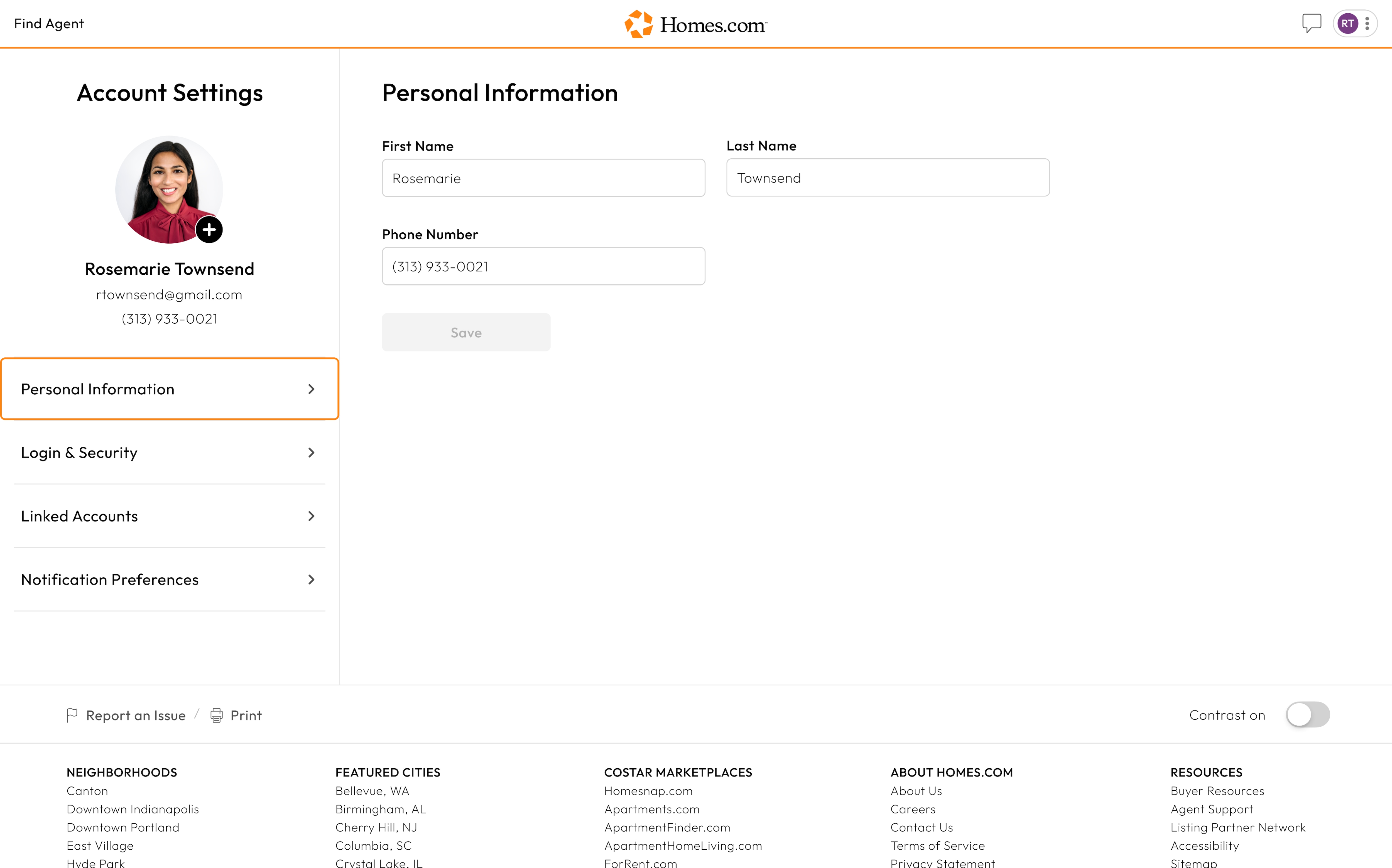
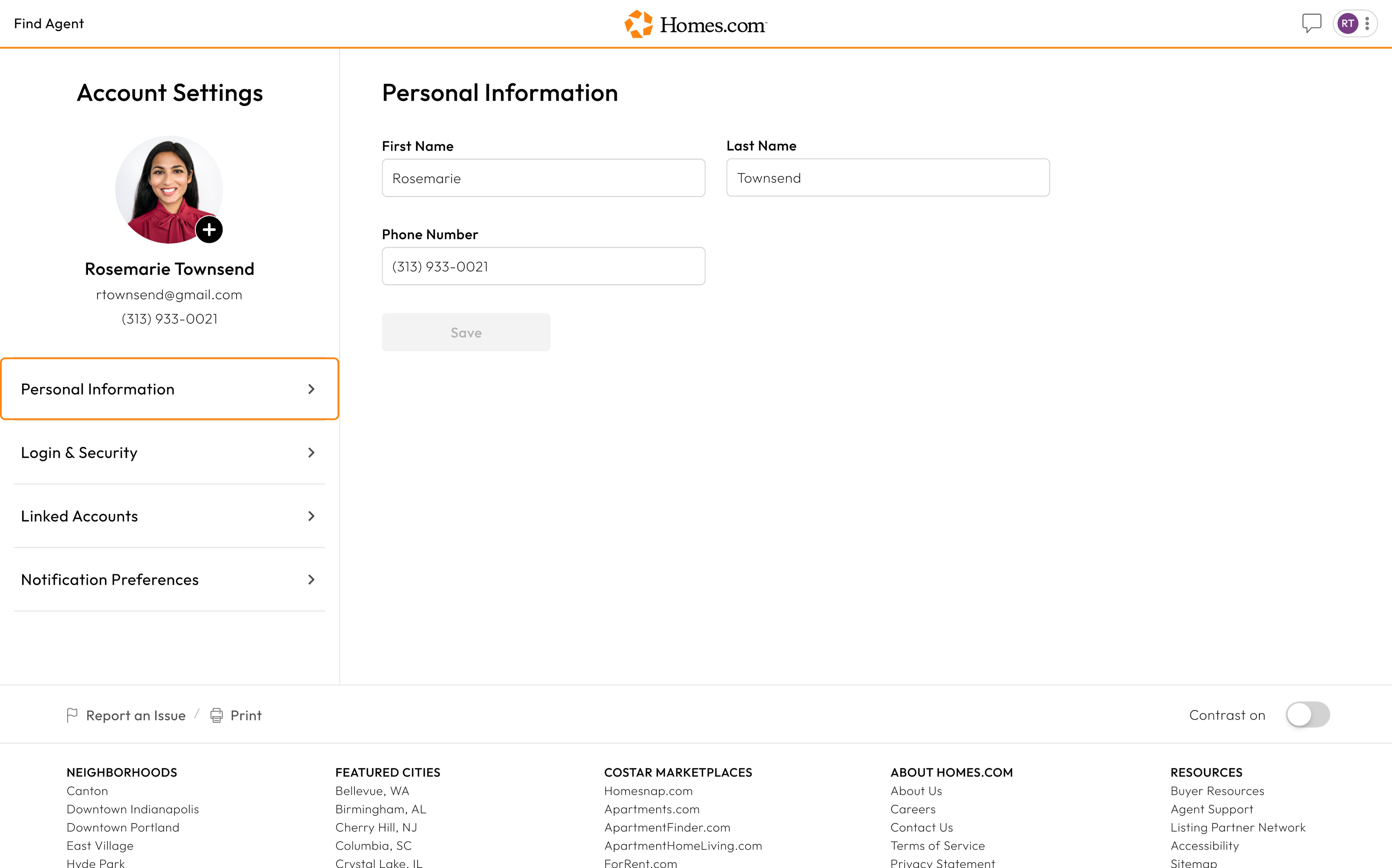
Once you arrive at your account settings, you will see a menu under your profile icon. This menu has your “Personal Information,” Login & Information,” “Linked Accounts,” and “Notification Preferences.”
To change your email and password, click on “Login & Security.” From here, you can click or tap on “update” next to your email address and password to update them.
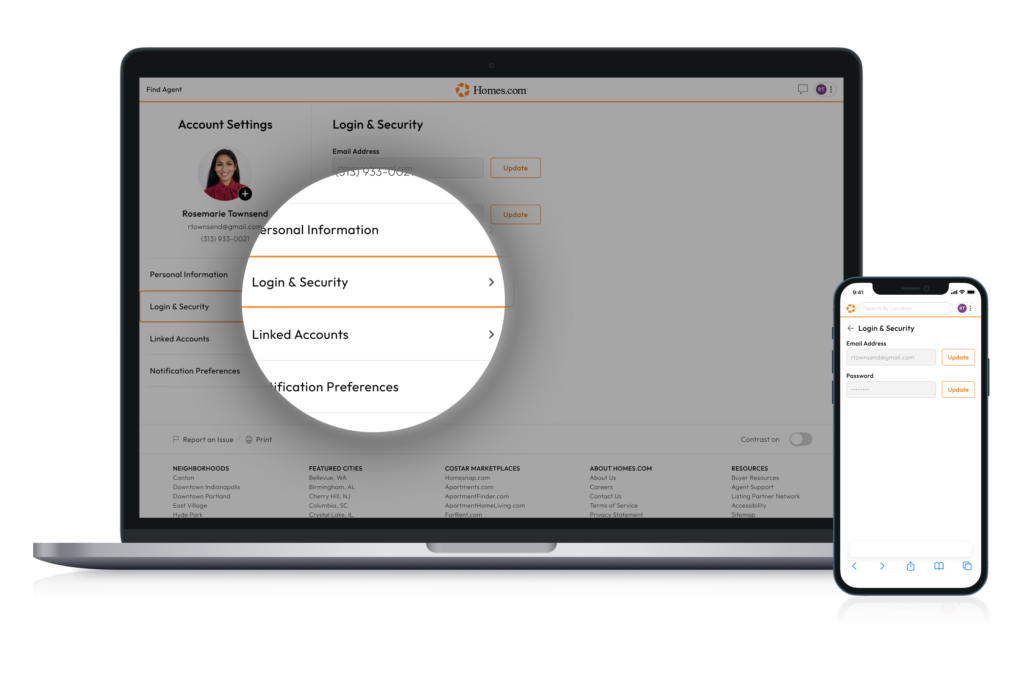
Once you enter your updated email address, you will be asked to verify your email with a code that was sent to your email. Once you find this code in your email, enter it in and hit verify.
To verify your password, you will be asked to enter your current password, then your new password, and then you will be asked to verify your new password. Once this is done you can click or tap “Save” to update your password.