How to Begin
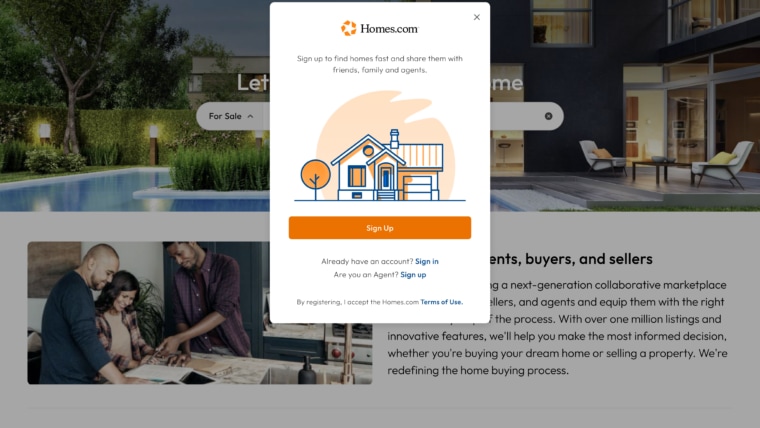
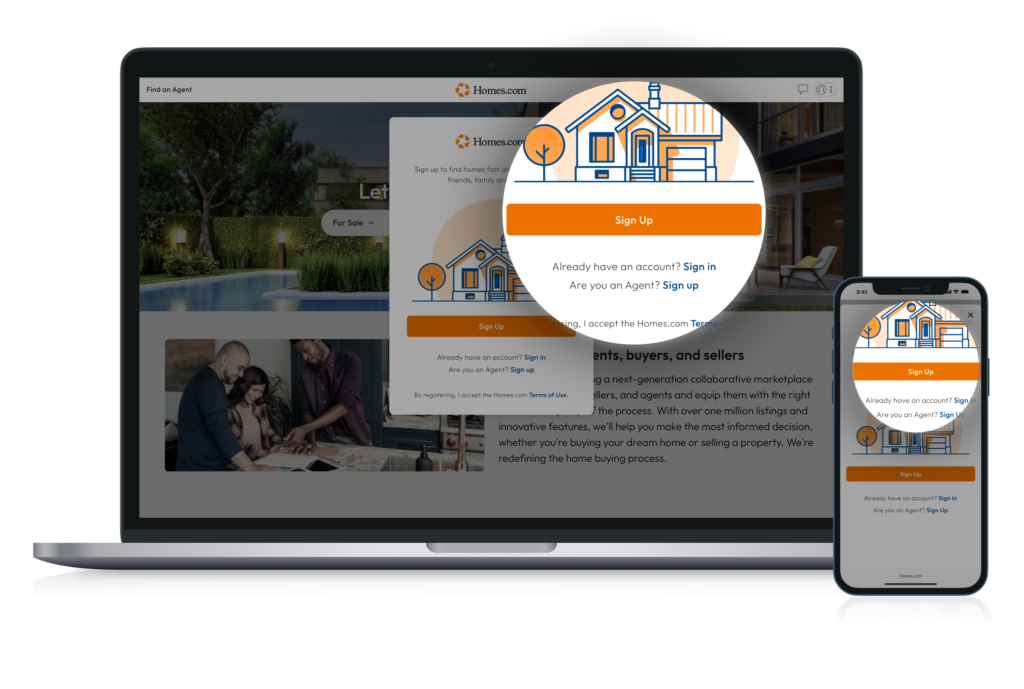
To sign up for Homes.com, first click or tap the profile icon in the top right corner. A menu will drop down. At the bottom of the menu, click or tap “Sign In / Sign Up.” A screen will appear and at the bottom and it should say, “Are You an Agent? Sign Up.” Click or tap “Sign Up” in order to create an account.
Finding Your MLS
Once you have tapped or clicked on “Sign Up,” a screen will pop up asking you to select your MLS. If you do not see your MLS, you can view other MLSs by clicking or tapping on “Other MLS” at the bottom of your screen. Once you click or tap that, other MLSs will pop up and you will be able to jump to different states to see other MLSs.
Once you select your MLS, you will need to claim your identity by either entering your name, email, or MLS ID and tapping or clicking the orange magnifying glass.
Once you enter this information in the search bar, and if it says “No Results,” you can either try putting in another form of information or selecting “Need Help?”
If multiple matches come up, select the MLS that matches your information. If only one MLS comes up, then select that MLS.
Verifying Your Identity
Once you have selected your MLS, you will be asked to verify your identity by verifying the contact information. You can decide to send the verification code to your email or phone number. If neither of these forms of communication work, click or tap “These Don’t Work.” You will then have the option to call Homes to help you verify your account.
If you decide to verify your account via email, you will enter your whole email then click or tap “Verify.” Once you click or tap “Verify,” a verification code will be sent to your email.
After you receive that code, you can put in the Verification code and then click or tap “Confirm Code.” If you did not receive a code, you can select “Resend Code.”
If you decide to verify your account via phone number, you will put in your phone number then click or tap “Verify.”
After you click or tap “Verify,” a verification code will be texted to you. Once you receive that code, you can put in the verification code and then click or tap “Confirm Code.”
If you did not receive a code, you can select “Resend Code.” Once you have confirmed your account, you will need to make a password.
Final Steps
Put in your password and then reenter your password in the “Confirm Password” section. When you are done, click or tap “Next.”
Once you are done creating your password, if Homes.com does not have your phone number, you will be asked to add your phone number. If you don’t want to add a phone number, select “Do This Later.”
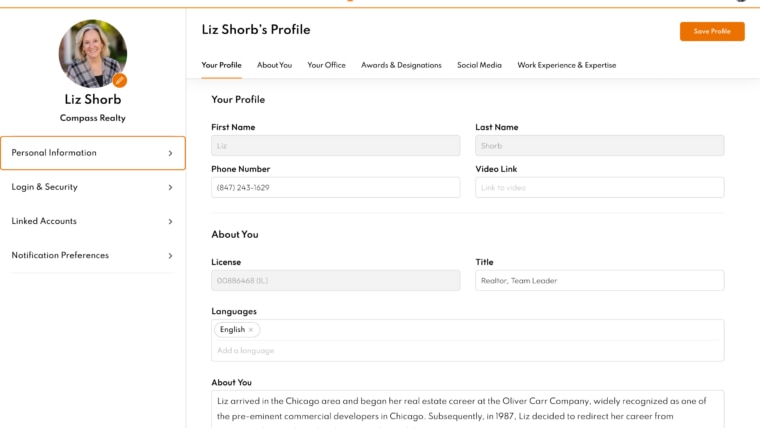
If you would like to add your phone number now, go ahead and put it in, then select “Next.” Once you are done selecting “Next” or “Do This Later,” you will be asked if you would like to set your profile photo.
If Homes.com does not have your photo already, you can choose to “Upload a Photo” or “Do This Later.” If Homes.com already has a photo, you can either select “Finish” or “Use Another Photo.”
Once you have completed all of these steps you have successfully completed creating your account.