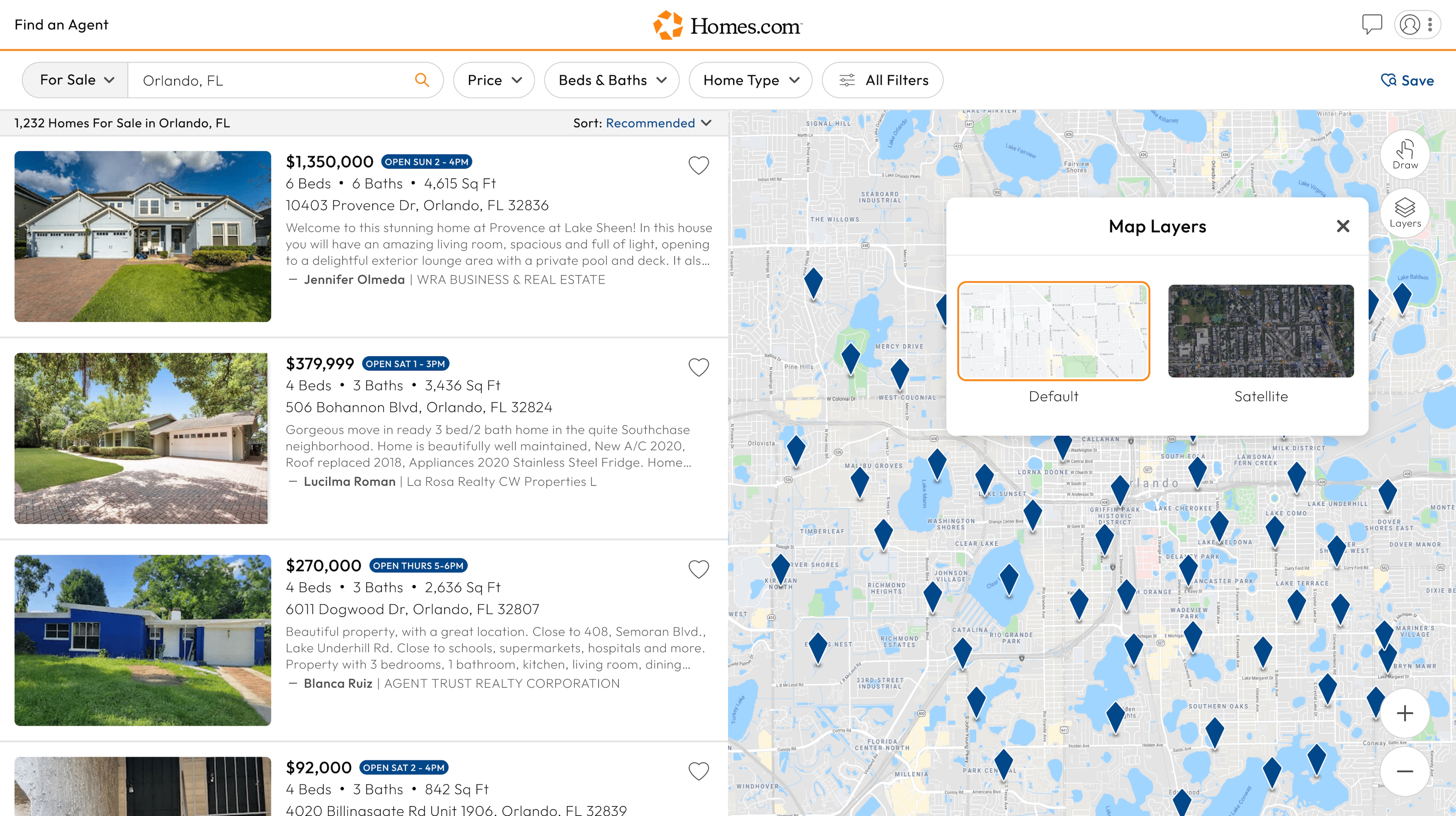
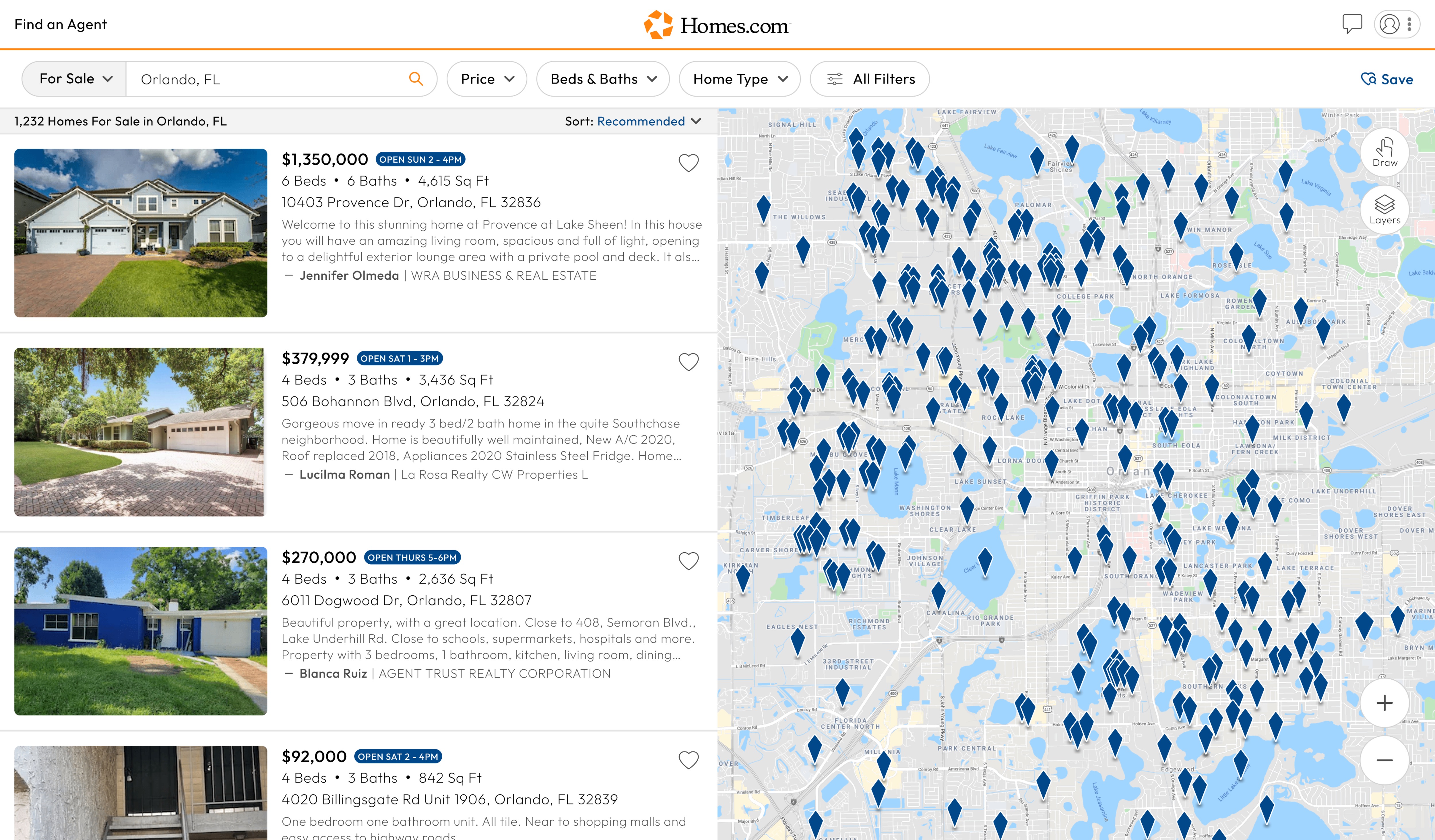
First, you’ll need to complete an initial search.
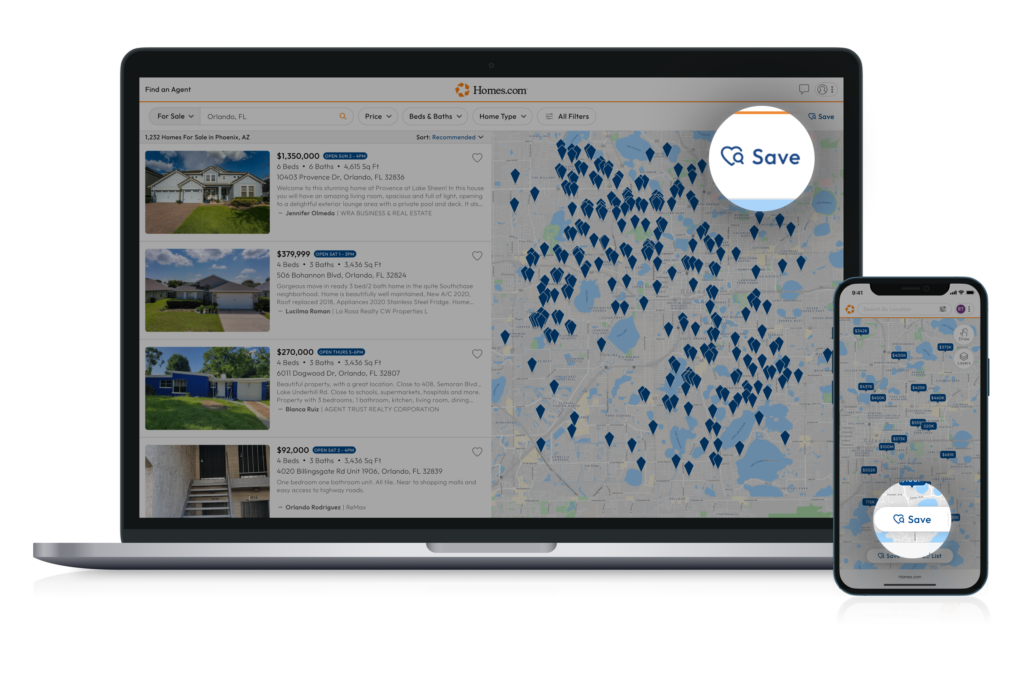
After you click to search, you will arrive on the search results page. You can click the “Save Search” button in the far-right corner below the profile icon.
Our save search feature allows you to save your desired location and the filters for homes you’re interested in so you can return to the search later on.
On mobile, tap on the filter’s icon, and a new page will pop up. Once you select your desired filters, you can select a search icon within a heart icon with the word “Save” below it to save your search.
Once you click or tap save, you will be able to save a search with that location and with any filters you would like to use in the future during your search.
To access your saved searches, click or tap on the profile icon in the top right corner of your screen. Or, tap on the “More” button at the bottom right corner of the screen and then the “Saved Searches” button to see all your searches. You can edit and delete your searches from the “Saved Searches” page.