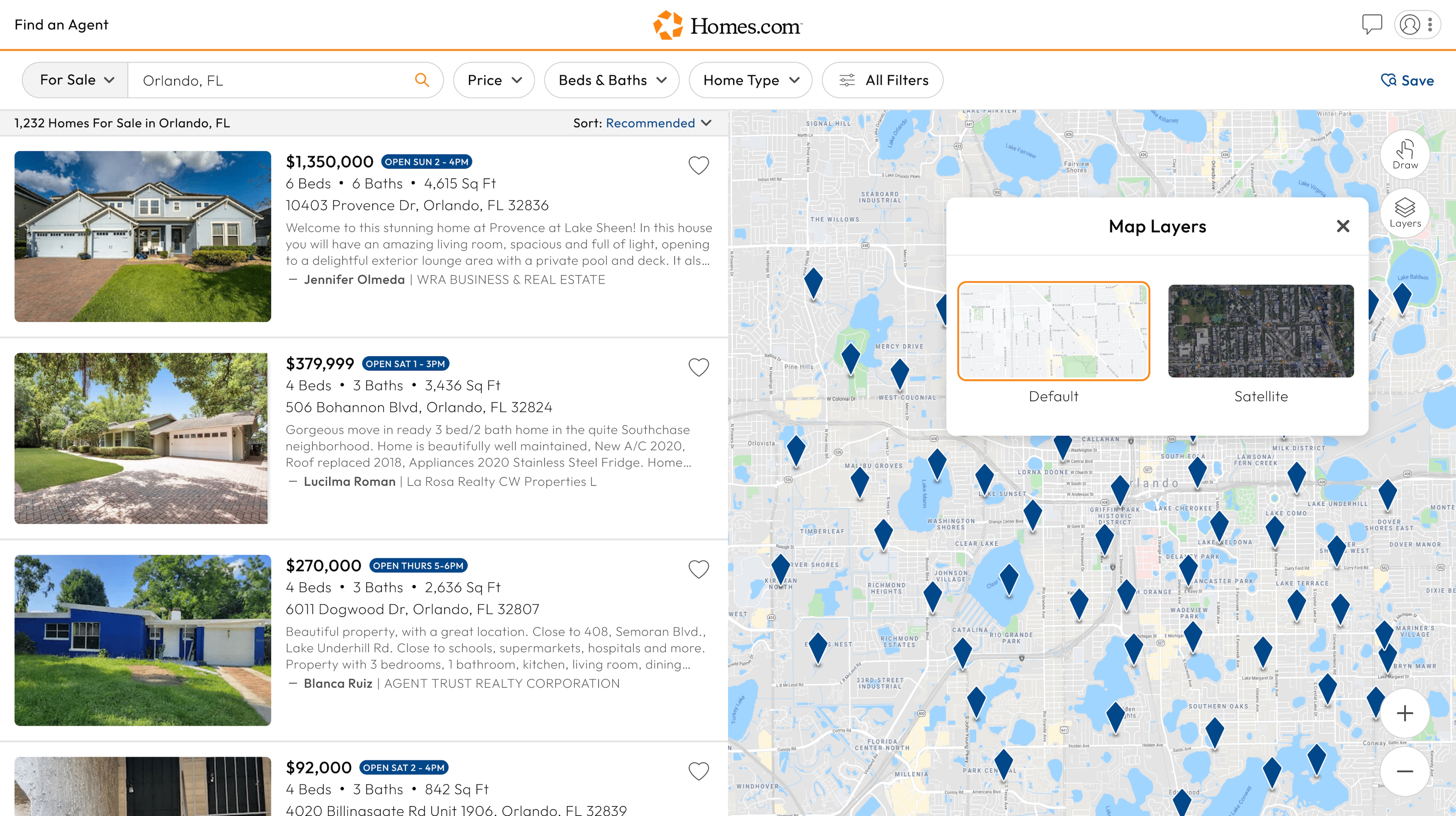
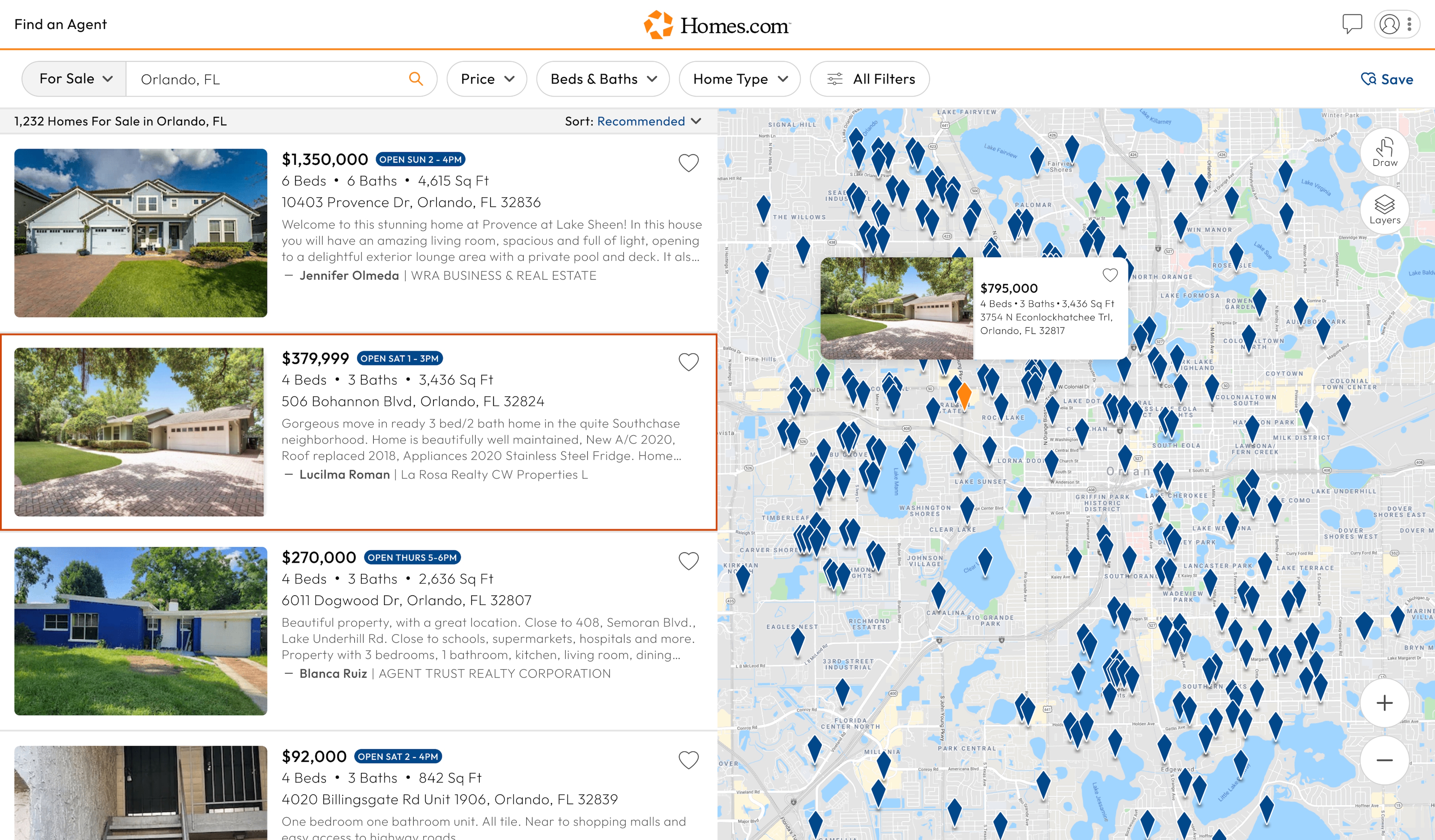
To use the “Draw” tool, you first need to complete an initial search on Homes.com. Once you complete an initial search, you will see a map of the location either to the right of your screen or (for mobile) on your screen. You should see the icons on the right of the map.
The “Draw” icon is located below the “Saved Search” button. On your screen, you will see a hand with the words “Draw” below it; this is the draw tool.
To use the draw tool, click or tap on the draw icon, then on the map using your mouse or finger, draw out the area in which you would like to search for homes.
Once you have drawn an area, the homes will appear on the left or (mobile) bottom of your screen as blue icons in the blue highlighted area you drew on the map.