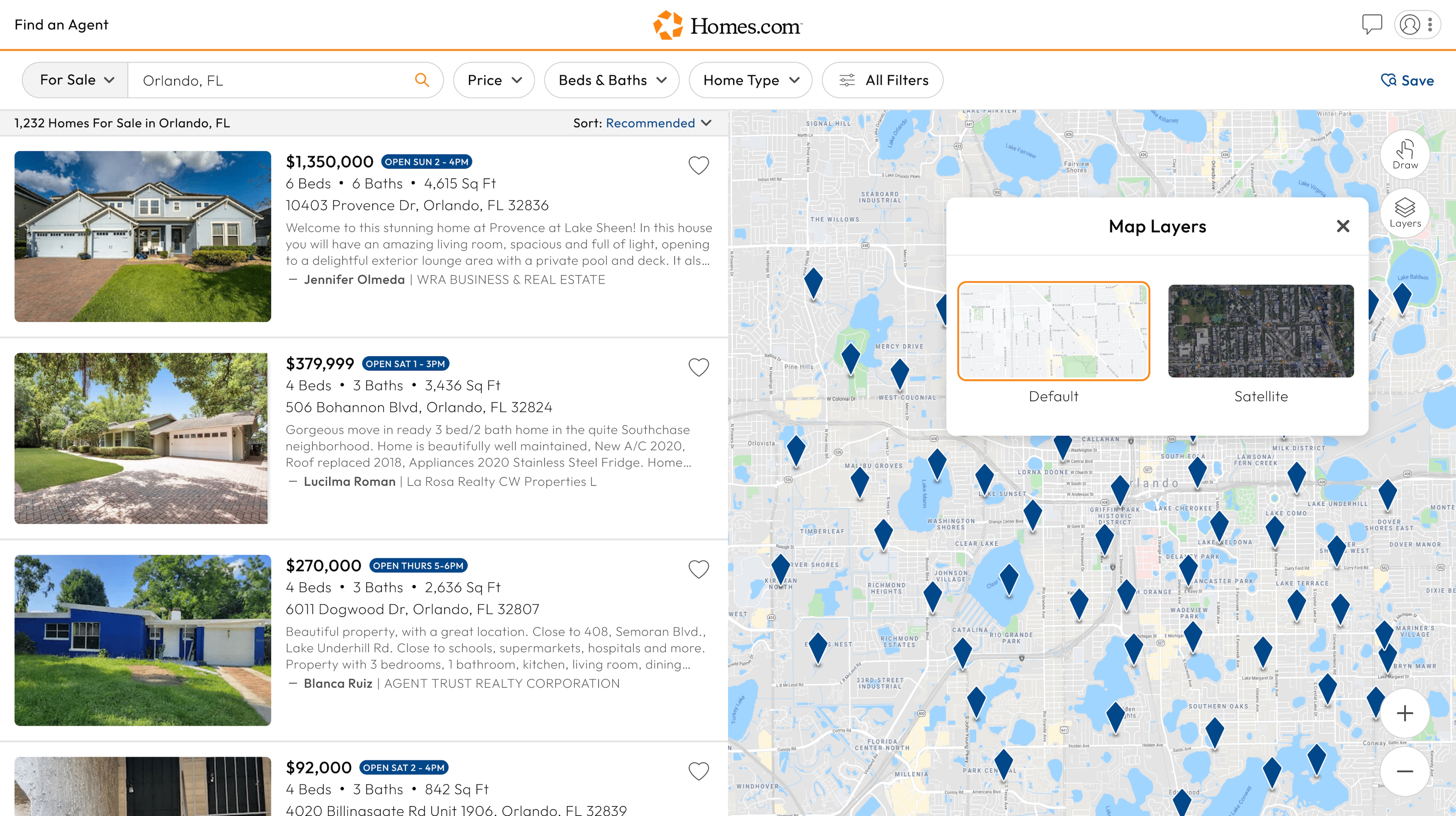
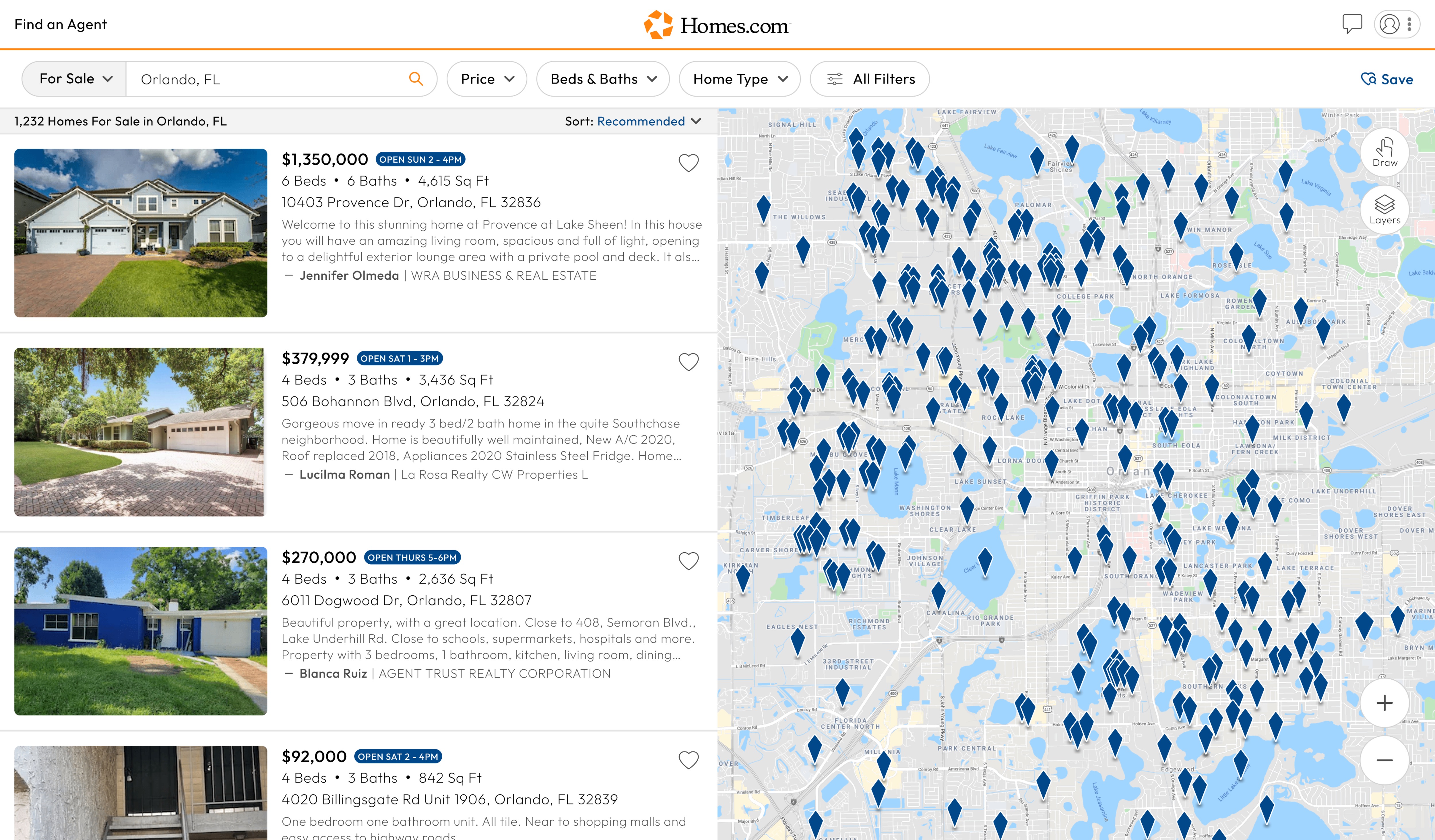
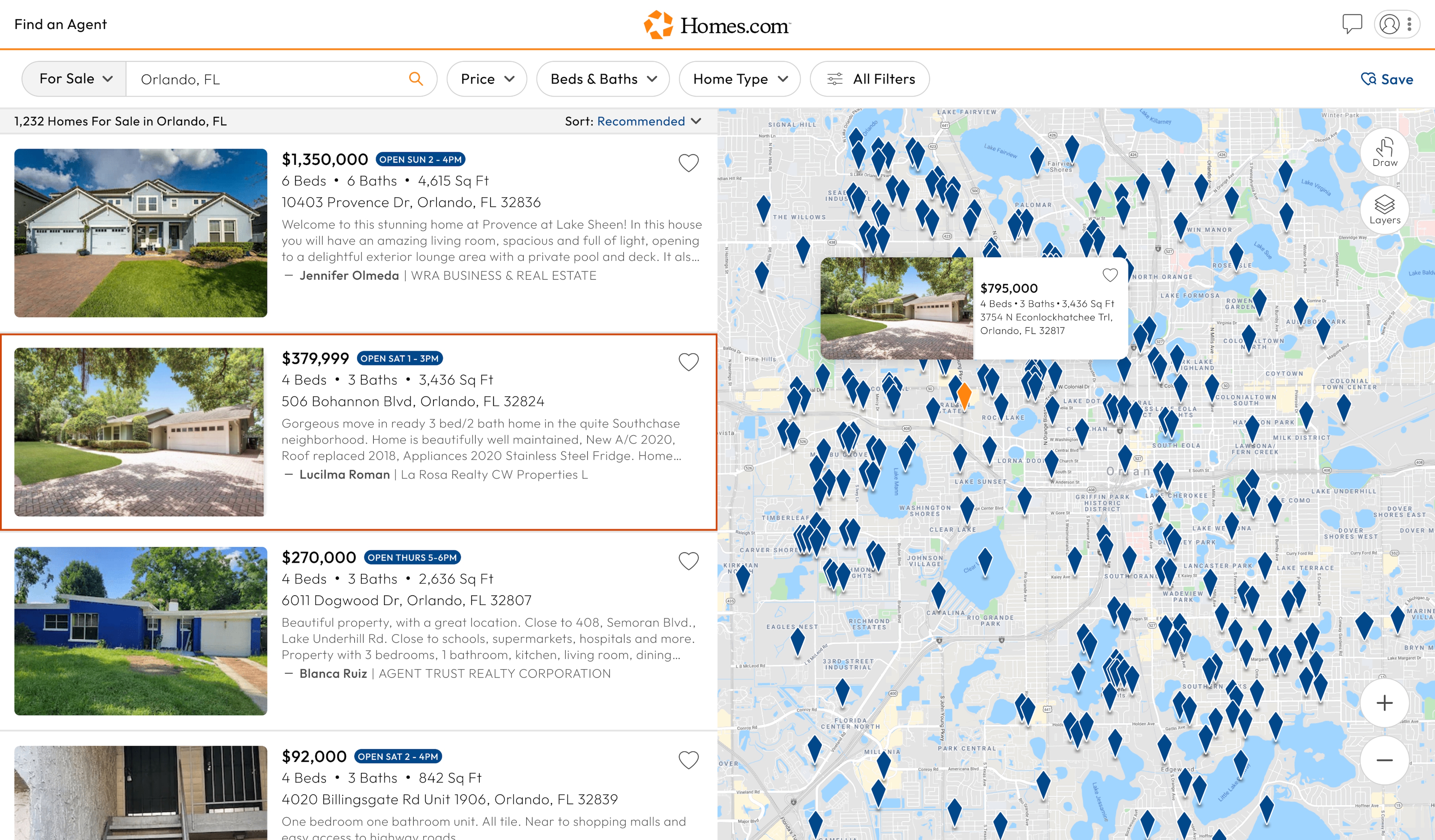
To use filters, you first need to complete an initial search by searching for your home via location. Once you click or tap search, you will arrive on a search results page.
Filters are located in the top section below where it says “Homes.com” or (on mobile) in the top right corner of your screen next to the search bar.
In the filters section, you can filter homes by price, the number of beds and baths, home type, and various other options.
To filter your search by price, click the down arrow on the “Price” button, then you can enter the minimum and maximum price.
To filter your search by the number of bedrooms and bathrooms, click on the down arrow for the “Beds/Baths” button, then you can select the number of beds and baths you would like. Once you are done, click or tap on the “Done” button.
To filter the type of home you would like, click on the down arrow for “Home Type” and select the types of home you would like to view.
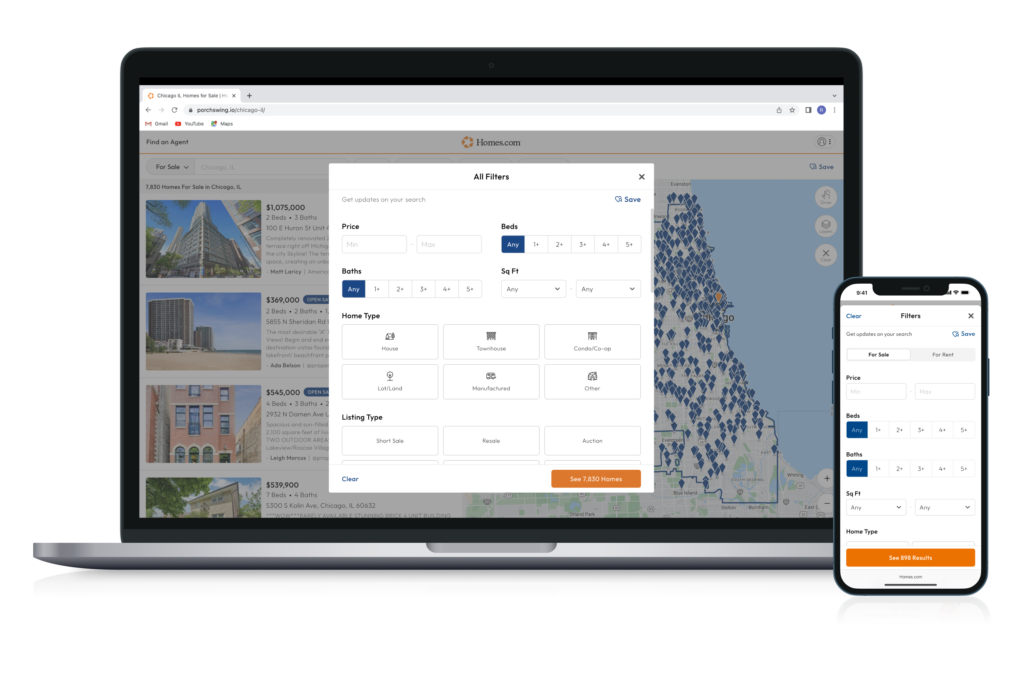
Finally, if you want to see all the filters for your search, you can click or tap on the “All Filters” button. This is where you can remove and add all the filters Homes.com offers.
You can select multiple features to filter your home search by as you continue scrolling. Once you are done, tap on the “See Results” button.