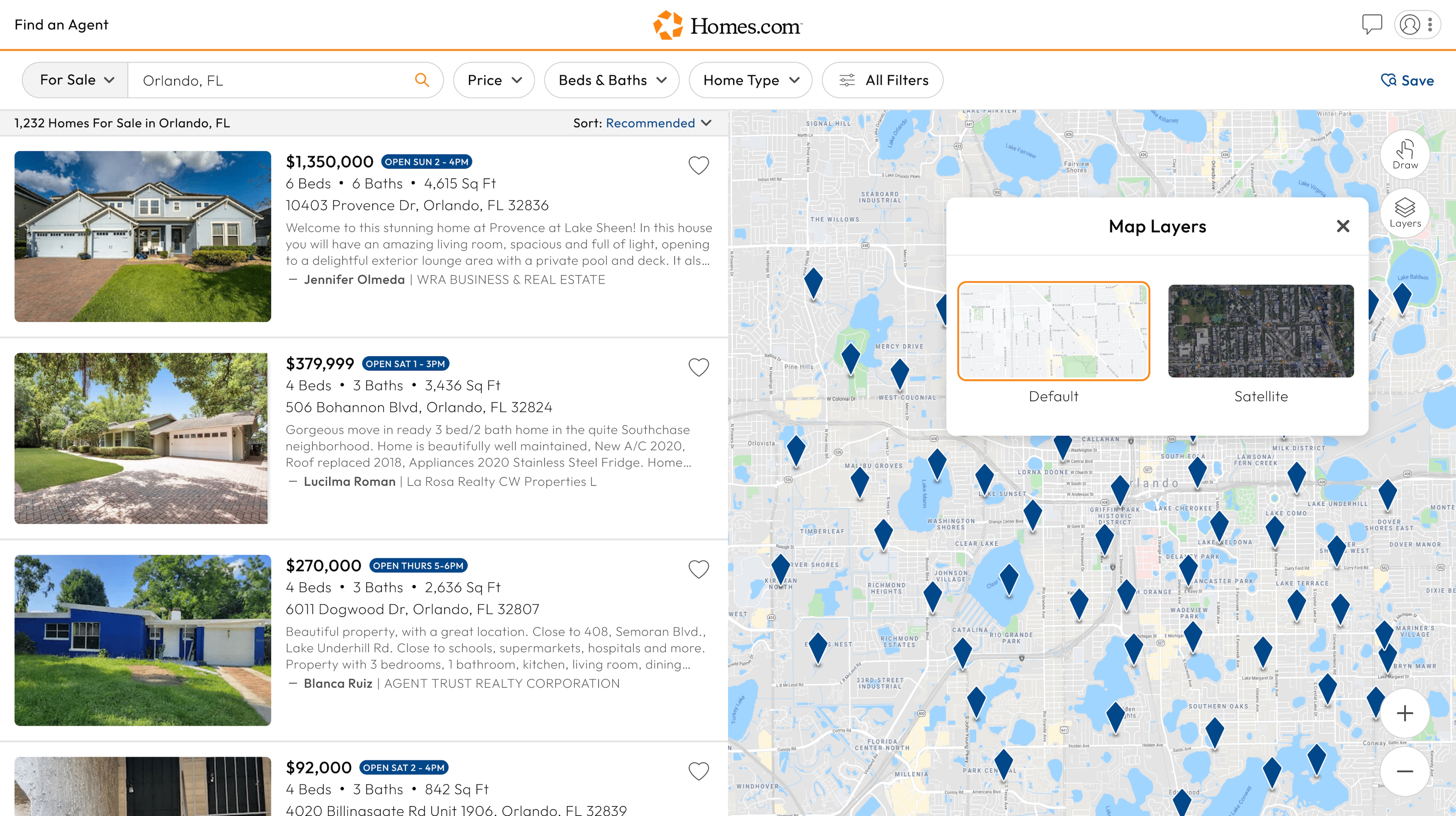
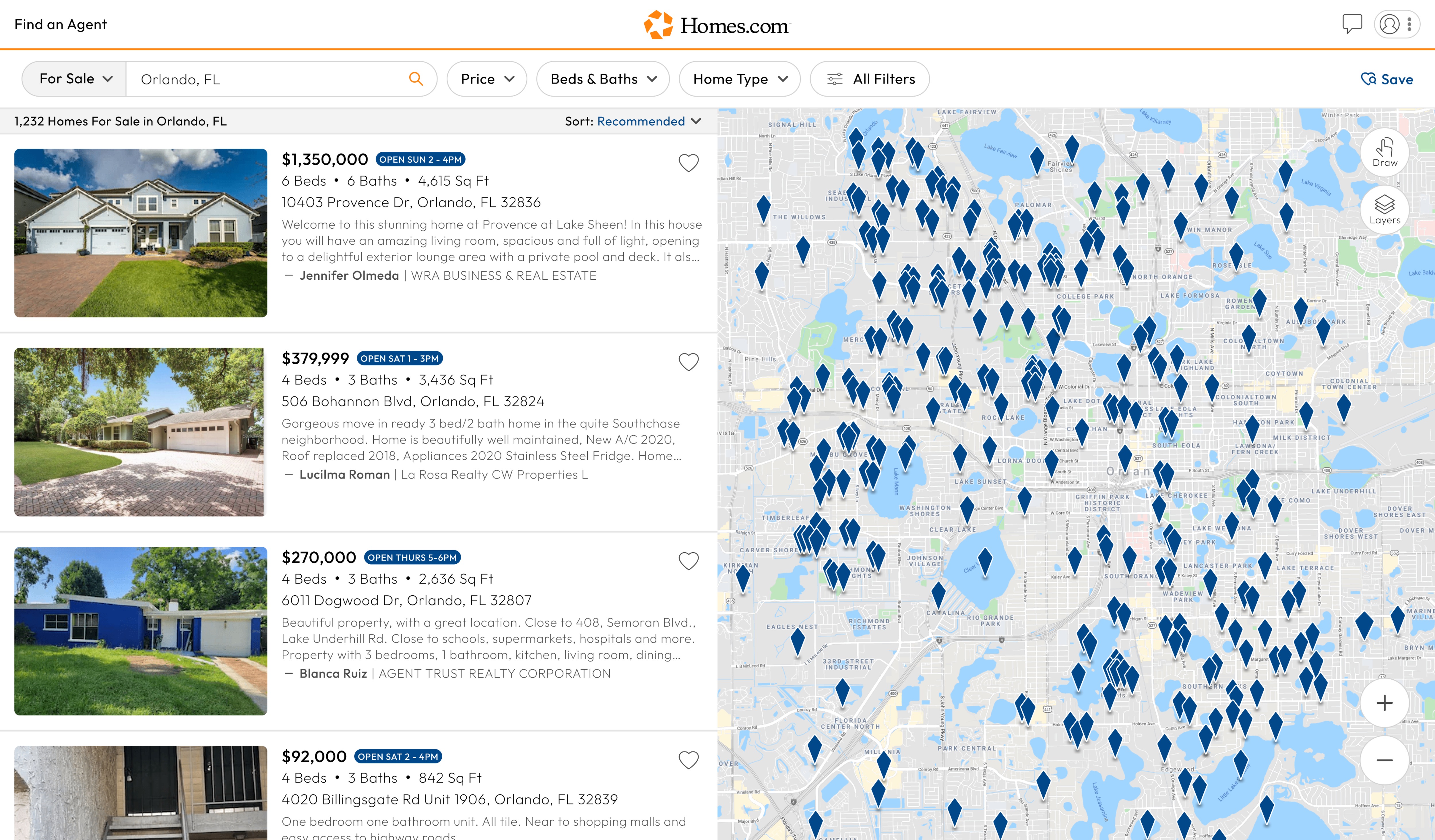
After you’ve searched for a location on Homes.com, you’ll see a list of homes on the left side of your screen and a map on the right side. On mobile, you’ll see “Map” in the top left corner of your phone screen. Tap on it to pull up the map.
On the map, you will see blue icons. Each blue icon is a home. You can click on the blue icon if you want to view a home.
Once you click or tap on the blue icon, it will turn orange. The home will appear on the left side of your screen, and it will be outlined in orange. On mobile, the home will be at the bottom of your screen.
On the far right side of the map, you’ll see several options. You can draw your own search area using your mouse or finger. To undo the drawn search, click “Clear.” You can also change the map view to satellite by clicking on “layers.” The “plus” and “minus” buttons on the bottom right allow you to zoom in and out.